
Get started on desktop
Install YouTube Voice
Section titled “Install YouTube Voice ”Install the browser extension, then open the extensions menu and pin YouTube Voice to your toolbar. Open a video, choose your listening language in YouTube Voice, and start playback. The installation links below will point to our listings when they are published.
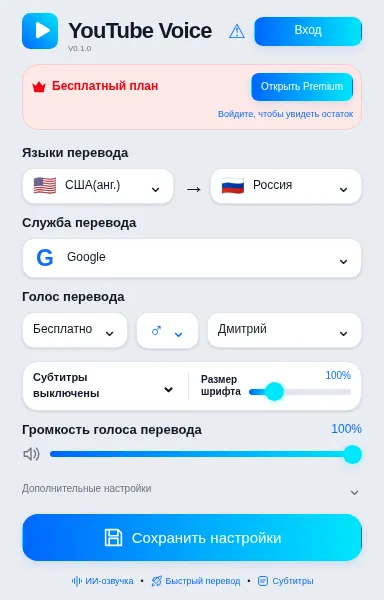
Adjust playback
Section titled “Adjust playback”Open the toolbar popup to change the settings below. Save your changes before returning to the video; volume and subtitle size update immediately.
1. Source language
Section titled “1. Source language”Choose the language of the available subtitle track. If that language has no track, check which captions the video actually provides.
2. Target language
Section titled “2. Target language”Select the language you want to hear. This selection also controls the translated subtitles and the summary language.
3. Gender
Section titled “3. Gender”Filter the available voices by gender, then select a voice from the resulting list.
4. Voice type
Section titled “4. Voice type”Use the free voice path for regular playback. The Azure TTS guide explains the availability of other voice choices.
5. Voice
Section titled “5. Voice”Choose a voice offered for the selected target language. Change the language first if the voice you need is absent.
6. Translation service
Section titled “6. Translation service”Select Google or an available AI translation model. Access depends on your account and the service configuration.
7. Original volume — Orig.Vol
Section titled “7. Original volume — Orig.Vol”Lower the original audio if it competes with the translated speech. At zero, the original speech is muted.
8. Translation volume — Dub.Vol
Section titled “8. Translation volume — Dub.Vol”Set the loudness of the translated voice independently from the original audio.
9. Subtitles
Section titled “9. Subtitles”Enable translated captions, show both languages, or hide the caption overlay.
10. Subtitle size — SubSize
Section titled “10. Subtitle size — SubSize”Adjust caption size while watching the video. Additional appearance controls are in the extension settings.
11. Background audio — bgm
Section titled “11. Background audio — bgm”Background audio needs a separately prepared track. This control does not separate music from speech by itself.
12. Text to speech
Section titled “12. Text to speech”Enable reading selected text when you want to listen to a passage outside a video.
13. Keyboard shortcuts
Section titled “13. Keyboard shortcuts”Open the browser shortcut settings to assign keys that do not conflict with other extensions.
14. Save settings
Section titled “14. Save settings”Save language, voice and translation choices. Original volume, translation volume and subtitle size already apply as you adjust them.